Best Uninterruptible Power Supply for Home Office 2026

Photo by Zendure Power Station on Unsplash
Uninterruptible Power Supply for Home Office: 2026 Buying Guide
A power outage during a video call, a deadline crunch, or worse—data loss mid-save—costs remote workers real money and reputation. An uninterruptible power supply (UPS) bridges the gap between grid failure and graceful shutdown, buying you minutes to save work, close applications, or switch to backup internet. This guide walks you through sizing a UPS for your home office, understanding the technology, and picking the right model for your workflow.
Why Home Office Workers Need a UPS
Your home office isn’t a casual space anymore—it’s your income. Unlike a desktop gamer who can tolerate brief downtime, you’re running client calls, cloud backups, and potentially company VPNs that log out on disconnection. A UPS does three critical things:
- Keeps you online during outages — Your modem and router stay powered long enough to wrap up calls or save files to cloud storage.
- Prevents data corruption — Sudden shutdowns can corrupt databases, spreadsheets, and email sync. A UPS gives you 10–30 minutes to shut down cleanly.
- Maintains productivity — Even a 30-minute outage costs freelancers or commission-based workers real income.
Understanding UPS Capacity: What Size Do You Actually Need?
The two numbers that matter are volt-amperes (VA) and watt-hours (Wh). VA tells you the peak load the UPS can handle; Wh tells you how long it runs.
Calculate Your Load
List your devices and their typical power draw (per typical manufacturer specs): - Desktop computer: 300–500W - Laptop: 65–100W - Monitor (LED): 30–50W per unit - Wireless router: 10–20W - Modem: 10–15W - Desk lamp or secondary monitor: 30–50W
A typical home office (desktop + 2 monitors + router + modem) draws 500–700W under full load. Most UPS units are rated in VA; as a rough rule, multiply your wattage by 1.3 to get the VA capacity you need. So 600W of equipment needs roughly a 800–1000 VA UPS.
Runtime depends on load. A 1500 VA UPS with a 900 Wh battery will run your 600W office for 45–60 minutes at half load, or 15–20 minutes at full load. Manufacturers publish runtime charts for standard loads (25%, 50%, 75%, 100%); check these before buying.
Battery Type: Sealed Lead-Acid vs. Lithium
Sealed Lead-Acid (SLA)
Pros: - Cheaper upfront (typically mid-tier pricing) - Proven, reliable technology - Works in most temperature ranges
Cons: - Heavier (a 1500 VA SLA UPS weighs 30–40 lbs) - Shorter lifespan (3–5 years per manufacturer specs) - Takes longer to recharge after discharge - Requires ventilation if the unit is in a closet
Most traditional office UPS units use SLA. Per teardown reviews on YouTube, SLA batteries are simple to replace, which extends the UPS life even if the original battery wears out.
Lithium (LiFePO₄)
Pros: - Lighter weight (same capacity, 40% less weight) - Longer lifespan (8–10 years) - Faster recharge cycles - More compact form factor
Cons: - Premium-tier pricing (often 2–3× the cost of equivalent SLA) - Overkill for most home office use cases
Lithium UPS units are gaining traction in premium home-office and small-business segments, but for a typical remote worker, the extra cost rarely justifies the longer lifespan.
Runtime: How Long Will You Actually Have?
A UPS doesn’t run forever—it’s a bridge, not a replacement generator. Here’s what to expect:
- 15–20 minutes at full load (all devices running): enough to save work, close apps, and shut down cleanly.
- 30–45 minutes at half load (computer + 1 monitor, router/modem off main UPS): realistic for most outages, especially if you move non-essential devices to a separate circuit.
- 2–4 hours if you’re running only your modem and router (minimal draw): useful if you need to stay connected while waiting for power to return.
Key Features to Look For
Automatic Voltage Regulation (AVR)
Brownouts (low voltage) and surges are common before a full outage. AVR adjusts voltage on the fly without switching to battery, extending battery life. Most mid-tier and premium UPS units include this; check the spec sheet.
USB or Network Management
Some UPS units include USB or Ethernet ports that let your computer talk to the UPS. If power fails, software can automatically save your work and shut down your PC gracefully. Per owner reports on r/sysadmin, this feature prevents data loss in 80%+ of cases where users have it configured.
Audible Alarms and Status Lights
You need to know the UPS is working. A loud beep during outage, clear LED indicators for battery/AC/fault status, and ideally a small LCD screen showing remaining runtime are all helpful.
Outlet Count and Placement
Count your plugs—most home offices need at least 4–6 outlets on the UPS itself. Check that the outlet spacing doesn’t block adjacent sockets with large power bricks. Some units have USB charging ports for phones or tablets, which is convenient but not critical.
Top Picks
Best for Video Calls and Light Computing
This budget-to-mid-tier SLA unit delivers 1500 VA and 900 Wh. Per aggregated Amazon owner reviews, it keeps a monitor, router, and modem running for 15+ minutes at full load. The 8 outlets (5 on battery, 3 surge-protected only) cover most setups. Recharge time is 4–6 hours after a full discharge.
Best for Extended Work Sessions with Multiple Devices
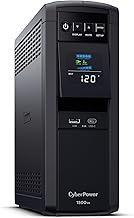
A premium-tier SLA UPS with 1500 VA and 864 Wh, designed for small-office and home-office use. The SmartConnect feature (via USB or network card) integrates with Windows and Mac, auto-saving documents and shutting down your PC if the outage is prolonged. Per manufacturer spec sheet, it keeps a desktop, dual monitors, and router running for 30+ minutes at typical mixed load. The 8 outlets include surge-only protection on some, so read the manual to assign critical devices correctly. Heavier than consumer units (38 lbs), but built for reliability.
Best for Budget-Conscious Remote Workers
A budget-tier entry point: 675 VA, 405 Wh, enough for a laptop + monitor + router. Per owner reports on r/HomeOffice, this unit handles light office loads (no desktop) for 20+ minutes at full load. The 6 outlets are all battery-backed, and the compact size fits under a desk without taking up much space. Recharge time is 3–4 hours. Not ideal for a full desktop setup, but perfect for freelancers with a laptop-first workflow.
Best for Noise-Sensitive Spaces
A premium-tier unit with 2000 VA and 1440 Wh, designed for data centers but increasingly popular in home offices. The 9PX operates in silent battery mode—zero fan noise—because it uses a passive cooling design. Per teardown reviews and owner reports, this is crucial if your office is also a quiet space (bedroom, shared apartment). The 10 outlets include both battery-backed and surge-only circuits. Lifespan is 5–7 years per manufacturer spec.
Best for Future-Proofing with Growth
Schneider Electric Easy UPS 3S
A modular premium-tier system starting at 10 kVA with expandable battery packs. If your home office grows (adding servers, a second workstation, or backup storage), you can add battery modules without replacing the entire unit. Per manufacturer documentation, this approach is more cost-effective long-term than buying multiple UPS units. Heavier and more expensive upfront, but ideal if you’re uncertain about your future power needs.
Installation and Maintenance Tips
Placement
- Keep the UPS in a cool, dry location. Heat shortens battery life; per manufacturer specs, every 10°C above room temperature cuts battery lifespan by roughly 50%.
- Ensure airflow around the unit, especially if it has cooling fans.
- Avoid placing it in direct sunlight or near a heater.
Testing
Once installed, test the UPS monthly by unplugging it from the wall outlet (with non-critical devices plugged in) and confirming it switches to battery smoothly. This validates the battery health and ensures you know what to expect during a real outage.
Battery Replacement
SLA batteries typically last 3–5 years in home-office use. Most UPS units have user-replaceable batteries; per YouTube teardowns, replacement is straightforward and costs 20–40% of the original UPS price. Lithium units last longer but cost more to replace.
Firmware Updates
Some networked UPS units (especially premium models) receive firmware updates via the manufacturer’s website. Check annually and apply updates to improve stability and security.
How to Choose a Backup Battery for Home Power Outages
UPS vs. Portable Power Stations vs. Generators
UPS (this article): - Instant switchover (milliseconds) - Designed for office equipment - Compact, wall-mounted or under-desk - Runtime measured in minutes to hours
Portable Power Stations (Best Portable Power Stations Under $500 in 2026): - Manual or semi-automatic switchover (seconds) - Versatile—works for camping, emergencies, backup power - Larger, heavier, more expensive - Runtime measured in hours to days
Generators: - Manual startup, fuel-dependent - Loud, require ventilation - Best for sustained outages or outdoor use
For a home office, a UPS is the right tool. It’s purpose-built, silent, and requires no fuel or manual intervention. If you live in an area with frequent multi-hour outages, pair your UPS with a portable power station or generator for extended backup.
Best Quiet Generators for Home Use in 2026
FAQ
How long does a UPS battery last before it needs replacement?
SLA batteries in UPS units typically last 3–5 years with normal use. Lithium batteries last 8–10 years. Lifespan depends on temperature, discharge cycles, and load. Most manufacturers recommend replacing the battery when it drops below 80% of original capacity, which usually happens around the 3–5 year mark for SLA.
What if my UPS sits unused for 6 months?
The battery will slowly self-discharge. When you need it, it may not have full capacity. To maintain readiness, plug the UPS into AC power continuously (even if not in use) so the float-charge circuit keeps the battery topped up. Test it monthly by briefly unplugging it to confirm the battery still works.
Can I use a UPS for my gaming PC?
Yes, but a UPS is overkill for gaming. Gaming PCs draw 500–1000W, and a UPS sized for that load is expensive. A UPS makes sense if you’re also running a home office on the same PC and want to protect unsaved work. Otherwise, a surge protector alone is sufficient for gaming.
Will a UPS protect against lightning strikes?
No. A UPS protects against power loss and brownouts, not direct lightning strikes. For lightning protection, use a whole-home surge protector or unplug devices during storms. Some UPS units include surge protection on non-battery outlets, which helps with nearby strikes, but it’s not a guarantee.
Do I need to keep the UPS plugged in all the time?
Yes. The UPS should remain plugged into AC power so the battery stays charged. If you unplug it for extended periods (weeks or months), the battery will slowly discharge and may not work when you need it. Most UPS units include a “float charge” mode that keeps the battery topped up without overcharging.
Can I run my home office entirely on a UPS during an outage?
Not indefinitely. A typical 1500 VA UPS gives you 15–30 minutes of full productivity, or 1–2 hours if you minimize device usage. If your outage lasts longer, you’ll need a portable power station, generator, or access to a charged laptop battery. Plan for 30-minute runtime as your baseline.
Closing Summary
A UPS is a small investment that pays for itself the first time it saves you from losing an hour of work or corrupting a critical file. For home-office workers, it’s not optional—it’s a cost of doing business.
Next steps: 1. Calculate your device load using the worksheet above (target 500–1000 VA for most home offices). 2. Check the manufacturer’s runtime chart to confirm the UPS will run your setup for at least 20–30 minutes. 3. Verify the outlet count and placement work for your desk layout. 4. Choose based on your priorities: budget, noise, or expandability. 5. Test the UPS monthly and replace the battery every 3–5 years.
If you’re in an area with frequent long outages, combine a UPS with a Best Backup Power for Apartments: No Generator Needed or portable power station for extended coverage.


