Best UPS for Home Office 2026 | Buying Guide

Photo by Zendure Power Station on Unsplash
Best UPS for Home Office: Uninterruptible Power Supply Buying Guide
A power outage that lasts even 30 seconds can wipe unsaved work, corrupt files, and derail your entire day when you work from home. An uninterruptible power supply (UPS) bridges that gap—it kicks in instantly when the grid fails, giving you time to save your work and shut down gracefully. This guide explains what to look for, how to size a UPS for your office, and which models work best for different setups.
What Is a UPS and Why Home Offices Need One
A UPS is a battery-backed power device that sits between your wall outlet and your equipment. When mains power drops, it switches to battery power in milliseconds—so fast that your computer doesn’t even notice the outage. Unlike a portable power station (which is designed for off-grid use), a UPS is built specifically to bridge short outages and provide a graceful shutdown window.
Home office workers depend on continuous power for:
- Data integrity: Saving files and closing applications properly.
- Equipment protection: Preventing hard-drive damage and corrupted databases.
- Productivity continuity: Staying online long enough to notify clients or colleagues before going dark.
- Network stability: Keeping your router and modem alive so you can reconnect when power returns.
A typical home-office UPS runs your equipment for 5–20 minutes—enough to save work and power down safely, not to keep working for hours.
Types of UPS: Standby vs. Line-Interactive vs. Online
Standby UPS (Most Common for Home Offices)
Standby models monitor the incoming power and switch to battery only when voltage drops below a threshold. They’re budget-friendly and compact, but the brief switching delay (a few milliseconds) can cause minor disruptions on sensitive equipment.
Best for: Budget-conscious home offices with basic devices (laptop, monitor, router).
Line-Interactive UPS (Sweet Spot for Most Setups)
Line-interactive units actively regulate voltage without switching to battery, so they handle minor power fluctuations smoothly. They only draw battery power during true outages. This hybrid approach extends battery life and protects against brownouts (low-voltage events).
Best for: Desktop workstations, small servers, or offices in areas prone to voltage sags.
Online (Double-Conversion) UPS (Premium)
Online UPS systems continuously convert AC to DC and back to AC, so your equipment always runs on battery power (the wall outlet just keeps the battery charged). There’s zero switching delay and maximum protection, but they’re pricier and generate more heat.
Best for: Mission-critical home setups, recording studios, or situations where any power interruption is unacceptable.
Key Specs: What to Compare
Capacity (VA and Watts)
UPS ratings show two numbers:
- VA (Volt-Amperes): The apparent power the UPS can supply. A 1500 VA unit can theoretically handle 1500 watts of resistive load, but real-world equipment draws reactive power too.
- Watts: The actual power available. A 1500 VA UPS typically delivers 900–1000 watts of real power, per industry standard power factor ratings (0.6–0.7 power factor).
Rule of thumb: Add up the wattage of all devices you want to protect, then choose a UPS with 1.5× that total. If your setup draws 600 watts, pick a 900+ watt UPS.
Common home-office loads:
- Laptop: 50–100 watts
- Desktop PC: 200–400 watts
- Monitor (LED): 20–50 watts
- Modem + router: 10–20 watts
- Printer (idle): 5 watts
A typical laptop-and-monitor setup needs 100–150 watts; a full desktop workstation needs 250–400 watts.
Runtime
Runtime is how long the UPS runs your equipment on battery. It depends on both the battery capacity and how much load you’re drawing.
Per manufacturer spec sheets, a 1500 VA UPS typically provides:
- 10–15 minutes at half load (750 watts)
- 5–8 minutes at full load (1500 watts)
Look for UPS models that list runtime at 50% load—that’s a realistic home-office scenario.
Transfer Time
This is how fast the UPS switches from mains to battery. Most modern units switch in under 10 milliseconds, which is imperceptible to computers. Older or budget models may take 25+ ms, which can cause brief screen flickers or mouse pauses.
Output Waveform
- Stepped approximation: Cheaper standby UPS models output a blocky, stepped sine wave. Most modern equipment tolerates it, but laser printers and some audio gear may complain.
- Pure sine wave: Outputs a smooth, true AC sine wave. Better for sensitive equipment (audio interfaces, high-end printers, medical devices). Most line-interactive and online units use pure sine wave.
Battery Type
- Lead-acid: Cheaper, heavier, shorter lifespan (3–5 years). Standard in budget and mid-range UPS.
- Lithium-ion: Lighter, longer lifespan (10+ years), more expensive. Increasingly common in premium UPS and portable power stations.
For a home-office UPS you’ll keep plugged in, lead-acid is fine—you’re not moving it. Lithium is worth it if you plan to keep the unit for 7+ years.
Sizing Your UPS
Step 1: List your critical devices.
Don’t protect everything—just what you need to save work and shut down. Typically: PC or laptop, monitor, modem, router.
Step 2: Find the wattage of each.
Check the power label on the back of each device, or search the model online. If a device lists amps and volts, multiply them (amps × volts = watts).
Step 3: Add them up and multiply by 1.5.
Example: Laptop (80W) + monitor (35W) + router (15W) + modem (10W) = 140W total. 140 × 1.5 = 210 watts needed. A 650 VA / 400-watt UPS is a common mid-tier size that provides comfortable headroom for this load without oversizing.
Step 4: Check runtime at your load.
If the UPS spec sheet says “X minutes at Y% load,” calculate your actual load percentage. If your setup draws 210 watts and the UPS is rated 400 watts, you’re at 52% load. Look for runtime at 50% load in the specs.
Top Recommendations
Best for Small Desk Setups
The CP1500PFCLCD is a compact standby UPS with an LCD display showing real-time power status, remaining runtime, and battery charge. Per CyberPower’s product spec sheet, it switches to battery within 4 milliseconds—faster than most competitors at this price point. It handles laptop-and-monitor setups reliably for 10–12 minutes and the stepped sine wave output works fine for most home-office gear. It’s lightweight enough to fit under a desk and quiet during normal operation.
Best for Full Desktop Workstations
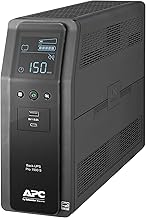
This line-interactive UPS delivers pure sine wave output and a larger capacity suited to desktop PCs, dual monitors, and peripherals. Per APC’s product documentation, it runs a typical 300-watt workstation for 15+ minutes and handles voltage fluctuations smoothly without draining the battery. The LCD panel is intuitive, and the unit includes USB and serial ports for automatic shutdown integration. It’s larger (tower form factor) but worth the footprint if you have a full setup.
Best for Extended Runtime
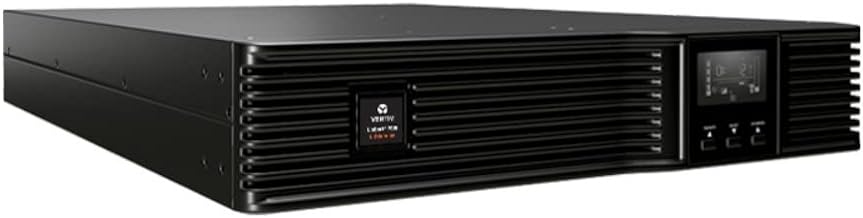
For users who need longer backup windows or plan to add external batteries, the Liebert PSI5 is a professional-grade line-interactive UPS. Per product documentation, it supports battery-module expansion and delivers clean power to sensitive equipment. It’s positioned at a premium tier but is built for reliability in small-business and home-office environments where uptime matters.
Best Budget Option
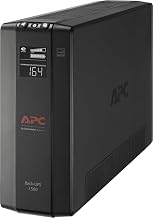
This entry-level standby UPS handles essential devices—modem, router, monitor—for 5–8 minutes. Per APC’s spec sheet, it provides reliable protection at half the cost of line-interactive models and occupies minimal desk space. It won’t protect a full desktop, but it’s ideal if you just want to save your work and notify others before shutdown.
Features to Consider
Automatic Shutdown Software
Premium UPS models ship with software that monitors battery status and automatically shuts down your PC when the battery reaches a critical level. This prevents data loss if the outage lasts longer than expected. Check that the software supports your operating system (Windows, macOS, Linux).
USB and Network Connectivity
Modern UPS units include USB or Ethernet ports to communicate with your computer. This enables automatic shutdown and remote monitoring. Some units integrate with smart-home systems.
Surge Protection Outlets
Most UPS units include additional surge-protected outlets (beyond the battery-backed ones). Use these for peripherals that don’t need battery backup—printers, speakers, desk lamps—so you don’t waste battery capacity on non-essential devices.
Audible Alarms
A beeping alarm sounds when power is lost and again if the battery is running low. This alerts you to the outage even if you’re away from your desk.
Hot-Swappable Batteries
Some UPS models allow you to replace the battery without shutting down the unit. Useful for extended uptime, but rare in home-office models.
Maintenance and Lifespan
A UPS battery degrades over time, especially if it’s charged and discharged frequently. Per APC and CyberPower user manuals:
- Test monthly: Unplug the UPS from the wall and verify it switches to battery and powers your devices.
- Replace batteries every 3–5 years: Lead-acid batteries lose capacity over time. Many UPS units have user-replaceable batteries; check your manual.
- Keep it cool: UPS units generate heat. Ensure adequate ventilation and avoid stacking items on top.
- Avoid deep discharge: Don’t let the battery drain completely—charge it back up once the outage ends.
UPS vs. Portable Power Station: Which Is Right for You?
A UPS is designed for short outages and always-on protection. A portable power station is designed for off-grid use, camping, or extended outages.
Choose a UPS if: You want instant, seamless protection for short outages and your equipment is stationary.
Choose a portable power station if: You need to power your office for hours, want portability, or plan to use it for camping and emergencies.
FAQ
Q: How do I know if my UPS battery is failing?
A: If the UPS beeps during a power outage but doesn’t power your devices, or if runtime drops noticeably (e.g., from 15 minutes to 5 minutes), the battery is likely degraded. Most UPS units have a battery-test button or LED indicator. If the test fails, replace the battery per your manual.
Q: Can I daisy-chain multiple UPS units?
A: No. Plugging one UPS into another causes unpredictable behavior and voids warranties. If you need more capacity, buy a single larger UPS or add external battery modules (if your model supports them).
Q: Will a UPS protect against power surges?
A: Yes. All UPS units include surge protection on their outlets. However, a standalone surge protector is still useful for devices plugged into regular wall outlets.
Q: Can I use a UPS with a laptop that has a built-in battery?
A: Yes, and it’s still worth it. The UPS protects your monitor, router, and modem—devices without built-in batteries. It also provides longer total runtime if your laptop battery is low.
Q: What’s the difference between VA and watts?
A: VA (volt-amperes) is apparent power; watts is real power. Due to reactive load, a 1500 VA UPS typically delivers only 60–70% of that in actual watts (900–1050 watts). Always check the watt rating when sizing a UPS for your load.
Q: Do I need an online UPS, or is line-interactive enough?
A: Line-interactive is sufficient for most home offices. Online UPS is overkill unless you have very sensitive equipment (audio interfaces, medical devices) or mission-critical work that can’t tolerate any switching delay.
Summary
A home-office UPS is cheap insurance against lost work and corrupted files. For most setups, a line-interactive UPS in the 1000–1500 VA range provides the best balance of protection, runtime, and cost. Size your UPS to your actual load, prioritize battery-backed outlets for your PC and monitor, and test it monthly to ensure it works when you need it.


