Best Uninterruptible Power Supply for Home Office 2026
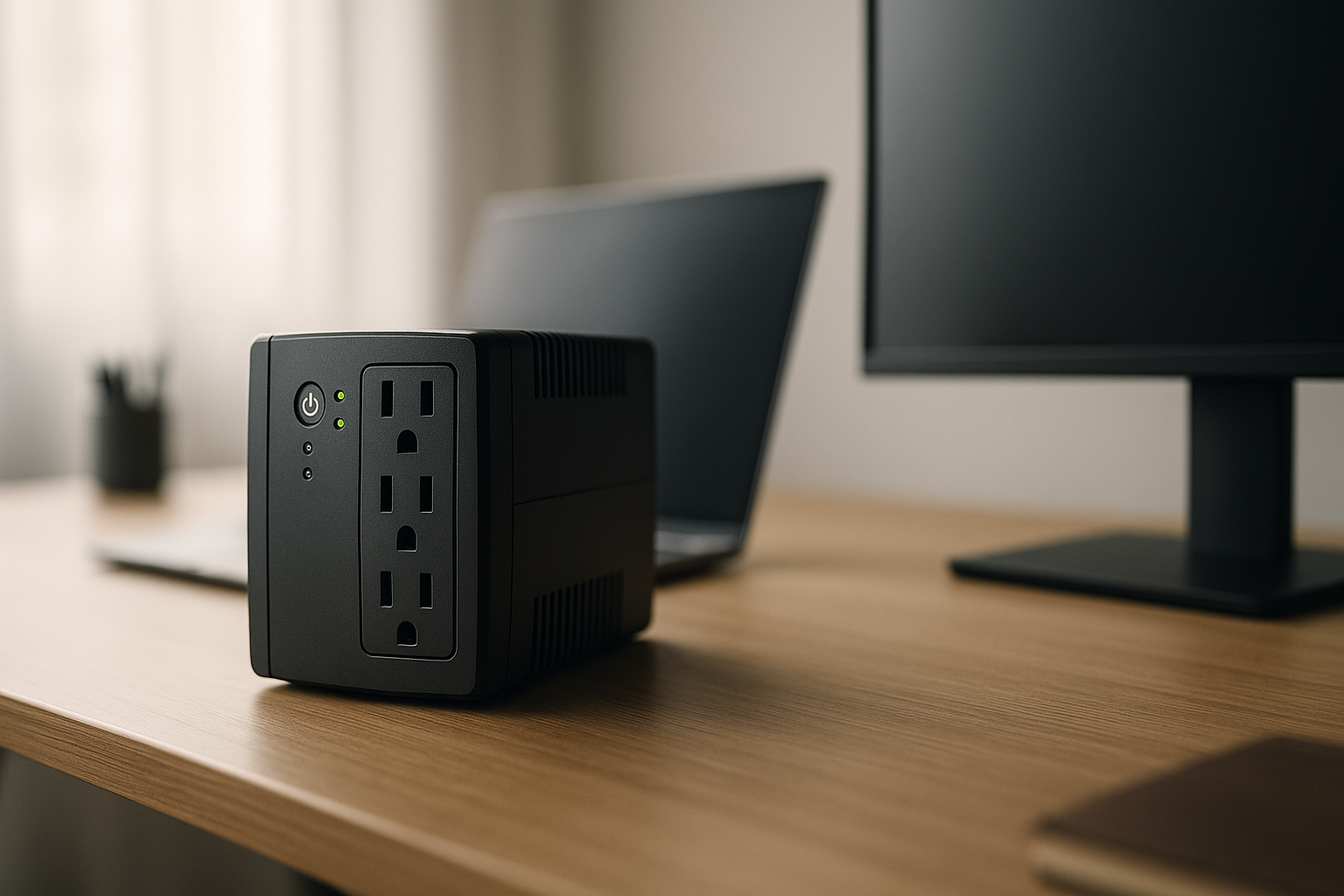
Best Uninterruptible Power Supply for Home Office in 2026
If your home office goes dark for thirty seconds, you lose an unsaved doc, a Zoom call, and probably your composure. A UPS — uninterruptible power supply — is the boring box under your desk that prevents that. This guide cuts straight to which UPS fits which kind of setup, and why the spec sheet matters more than the brand name.
What a UPS actually does (and doesn’t do)
A UPS is not a generator. It’s a battery that sits between your wall outlet and your gear, switching over in milliseconds when the grid hiccups. The goal is runtime measured in minutes — long enough to save work and shut down cleanly, or to ride out a brief outage.
Three things to know before you shop:
- Topology matters. Standby (offline) units are cheapest but switch slower. Line-interactive units regulate voltage continuously and handle brownouts without dipping to battery. Double-conversion (online) units are overkill for most home offices and run hot. For a typical desk setup, line-interactive is the sweet spot.
- Sine wave vs. stepped approximation. Modern desktop power supplies with active PFC can choke on stepped/simulated sine wave output, sometimes shutting off or making audible clicking, per long-running threads on r/buildapc and r/homelab. If you run a desktop PC built in the last decade, get a pure sine wave UPS.
- VA ≠ watts. A “1500VA” unit is usually around 900W of real output. Size by watts, not the marketing number.
For a deeper walk-through of sizing, see our Best Uninterruptible Power Supply for Home Office: UPS Buying Guide.
How to size a UPS for your home office
Add up the wattage of everything you’d plug into the battery side:
- Computer. A laptop pulls 45–100W; a midrange desktop pulls 150–400W under typical office load (per published PSU efficiency curves and aggregated owner reports on r/buildapc).
- Monitors. Modern 27” IPS panels run roughly 25–45W each, per manufacturer spec sheets.
- Network gear. Router plus modem plus a small switch is typically 20–40W combined.
- Anything else critical. External drives, a NAS, a desk phone. Skip printers, space heaters, and laser anything — they spike too hard.
Add it up, then aim for a UPS whose real wattage rating is roughly double your continuous draw. That gives you a healthy runtime cushion and keeps the battery from cycling deeply every outage, which extends its life. A 1500VA / ~900W unit handles most single-workstation setups with a few minutes of comfortable runtime.
If your work depends on staying online for an entire outage rather than just shutting down cleanly, you’re shopping for a different tool — see Emergency Backup Power for Home Office: UPS vs Portable Station.
Top picks for 2026
Best for a single laptop + monitor: APC Back-UPS BE600M1
If your “home office” is a laptop, an external monitor, and your router, you don’t need a refrigerator-sized tower humming under the desk. The BE600M1 is the unit most owners settle on for this scenario, based on aggregated Amazon reviews and recurring recommendations in r/HomeNetworking outage threads. It’s a 600VA / 330W standby unit with seven outlets — four battery-backed, three surge-only — and a single USB charging port.
What it does well:
- Compact enough to hide behind a desk leg.
- Audible alarm you can actually disable, which matters more than people admit.
- Long enough runtime on a laptop-plus-monitor load to either ride out a typical brief outage or shut down without panic.
What to know: it’s a standby topology with stepped-approximation output. That’s fine for laptops, phone chargers, and routers — it’s not appropriate for a desktop PC with an active-PFC power supply.
Best for a dual-monitor desktop workstation: CyberPower CP1500PFCLCD
CyberPower CP1500PFCLCD PFC Sinewave UPS
This is the unit I see recommended most often for desktop home offices, and the reasoning holds up. It’s line-interactive (so it handles brownouts without going to battery), pure sine wave (so your PSU doesn’t fight it), and rated 1500VA / 1000W per the manufacturer spec sheet. The front LCD shows load wattage and estimated runtime, which is genuinely useful for sizing.
Owner reports on r/homelab and r/sysadmin consistently mention multi-year service from the original battery before replacement is needed, with the battery itself being a standard sealed lead-acid pack that’s straightforward to swap. The unit is in the mid-tier price range and tends to be the default answer when someone asks “what UPS for my gaming/work PC.”
Caveat: the fan kicks on at higher loads, and during voltage regulation events the transformer can buzz. If you sit two feet from it in a quiet room, you’ll hear it occasionally.
Best for a creator rig with NAS: APC Smart-UPS SMT1500C
When the protected load includes a desktop, two or three monitors, a NAS that absolutely should not lose power mid-write, and network gear, step up to a Smart-UPS. The SMT1500C is line-interactive, pure sine wave, 1500VA / 1000W, and — critically — supports APC’s network management card for remote monitoring and clean shutdowns of multiple devices over the network.
Per APC’s documentation and aggregated owner feedback in r/homelab, the SmartConnect cloud monitoring is genuinely useful for tracking battery health over time. This is a premium-tier unit and you’re paying for build quality, the management ecosystem, and a battery that’s rated for longer service life than the consumer Back-UPS line.
If you’re seriously considering a NAS-backed setup, also read Best Expandable Power Station for Growing Needs — for some users, a portable power station with passthrough is a better fit than a traditional UPS.
Best for renters who hate fan noise: Eaton 5S1500LCD
Eaton is the “you’ve heard of it from data centers” brand, and the 5S is their home-office line. It’s 1500VA / 900W, line-interactive, pure sine wave, with an LCD that’s clearer than CyberPower’s. Per the manufacturer spec sheet, it’s passively cooled at typical home-office loads — the fan only engages under heavier draw or when on battery. In practice that means it’s silent at a desk.
Aggregated owner reviews praise the build quality and the included software (Intelligent Power Manager) for automated shutdown. The trade-off: it’s less common at US retail than APC or CyberPower, so replacement batteries can take longer to source.
Features worth paying for
- Pure sine wave output. Non-negotiable for a desktop with an active-PFC power supply. Nice-to-have for laptops.
- AVR (automatic voltage regulation). Smooths brownouts without dipping to battery. Standard on line-interactive units.
- USB or serial communication. Lets your OS auto-shutdown when the battery hits a threshold. This is the actual point of having a UPS for unattended machines.
- Replaceable battery. Every UPS battery dies in 3–5 years per aggregated owner reports across brands. If you can’t swap it, you’re throwing away the whole unit.
- An audible-alarm mute button. Cannot overstate how much you will want this at 2 AM.
Features that are mostly marketing
- “Joules” surge ratings above ~1000. Above a certain threshold, you’re protected against anything residential wiring will deliver. Bigger numbers on the box are sales copy.
- USB charging ports on the UPS itself. Convenient, but they run off the battery in an outage, which wastes runtime you’d rather give your computer.
- “Gaming” branding. It’s the same hardware with RGB. Skip it.
UPS vs. portable power station
People increasingly ask whether a portable power station (Jackery, EcoFlow, Bluetti) can replace a UPS. The honest answer: sometimes, with caveats.
A portable power station has way more capacity — hours of runtime instead of minutes — and can power things a UPS can’t, like a small fridge during a longer outage. But most consumer power stations have a transfer time of 20–30ms when used in UPS mode, which is enough to glitch some desktops, and the dedicated “UPS mode” feature isn’t on every model. They’re also a poor surge-protection story compared to a real UPS.
For most home offices, the right answer is a UPS on the desk and, optionally, a power station nearby for longer outages. We compared the two head-to-head in Emergency Backup Power for Home Office: UPS vs Portable Station, and if you’re leaning power-station, Best Battery Backup for Power Outages in 2026 is the deeper buying guide.
Installation and setup, in five minutes
- Unbox the UPS. The battery may ship disconnected — check the manual for a “connect battery” step, usually a single red wire to attach.
- Plug the UPS into the wall and let it charge for the recommended period (typically 8–16 hours per the manufacturer instructions) before relying on it.
- Plug only critical gear into the battery-backed outlets. Use the surge-only outlets for things like desk lamps and chargers.
- Connect the USB cable to your computer. On Windows, the OS detects it as a battery automatically; on macOS, same; on Linux, install
nutorapcupsd. - Configure auto-shutdown for when battery hits roughly 20% remaining.
Do not plug a laser printer, space heater, or any motor-driven appliance into a UPS. They draw spikes that will trip overload protection and shorten battery life.
FAQ
How long should a UPS keep my computer running?


